Understanding Apache Maven – Part 7 – Configuring Apache Maven

java, maven

Published: 2020-06 (June 2020)
Verified with: Apache Maven 3.6.3

Link to an index, to find other blogs in this series.

In Part 7 of the series, various means of configuring Apache Maven are covered.

Why Configure Apache Maven?

Over several parts in this series, Maven was touted to be convention-over-configuration. Maven assumes defaults and allows for overrides where possible.

However, Maven can depend on constraints external to what is packaged. Examples include the JDK to use (assuming there are several JDKs on the computing device), the flags to set (memory, Garbage Collection flags for tests etc.), system / environment variables, repository information, extensions to maven and so on.

The examples mentioned above are external to both the maven executable/distribution as well as to the POM that is authored. Hence a need to provide a means of configuration.

Options to configure Maven

  • Using environment variables
  • Using config files under a .mvn directory in the project
  • Using XML configurations

Configuring Maven – Environment Variables

There are a few environment variables (abbreviated as env. var. in the blog) useful for maven execution of a POM. Listing a few common ones here:

JAVA_HOME

The JAVA_HOME env. var. points to the location of the JDK. This is useful to set especially if there are more than one JDK installations on the computing device. The value is an absolute path to a directory which contains the the JDK executable binaries and libraries.

M2_HOME

The M2_HOME env. var. points to the location of the Apache Maven installation. This is useful especially if there are more than one version of Apache Maven installations on the computing device. Apache Maven may also rely on this env. var. for maven location. The value is an absolute path to a directory which contains the maven binaries and libraries.

PATH

The PATH env. var. includes locations where the operating system looks for executable binaries and scripts. Including a path to the JAVA_HOME/bin (or JAVA_HOME\bin for Windows) and a path to M2_HOME/bin (or M2_HOME\bin for Windows) allows for java, javac, mvn and other executables there in, to be accessed from any directory.

MAVEN_OPTS

The MAVEN_OPTS env. var. is useful for setting JVM options to be used during the maven execution of the POM. Common use cases include setting of memory and garbage collection options.

Configuring Maven – Config files

Maven allows for customization on a per-project basis via config files. These files are located in a .mvn directory under the project root directory. The directory can contain a few config files.

The jvm.config file

The project root directory in maven is referred to as projectBaseDir.

The ${maven.projectBaseDir}/.mvn/jvm.config file is a more modern take on specifying JVM arguments and can be used in lieu of the MAVEN_OPTS shared earlier. It also replaces an older .mvnrc file (which had to be located in the logged-in user’s HOME directory). The newer jvm.config allows for customizing JDK/JVM options on a per-project basis and these files can be checked in, into a source control system to be shared with other developers on the same project.

The mvn.config file

A ${maven.projectBaseDir}/.mvn/mvn.config file is useful for setting maven command line options that need to be set for normal execution.

Most developers simply memorize the standard commands to run maven:

mvn clean install
mvn clean verify
etc.

Forgetting to set other required command line interface (CLI) options useful for any other reason can result in unexpected or unwanted outcomes from the execution.

An example could be that the project POM relies on SNAPSHOT versions, but requires force updates of SNAPSHOTs every build. This is done via a -U CLI option. Similarly a project may wish to fail the execution of maven if the checksums for artifacts fail. This can be done via a --strict-checksums CLI option. Such would usually require reading some documentation.

The mvn.config file allows for setting and checking into version control, such options that can be used by other developers on the project.

Configuring Maven – XML files

In Part 2 of the series, the global settings XML file and a user-home settings.xml were covered. There are additional configuration files that maven provides.

Global settings.xml

Located under the maven installation conf directory, is a settings.xml file that is applicable to any user who uses the installed version on maven on the computing device. Typical usage of this settings file is for corporate settings, proxies within the network, approved mirror sites etc. It is not recommended to heavily customize/personalize this file since it will equally impact all users on the said computing device.

User Home settings.xml

Located at ~/.m2/settings.xml (or ${USER_HOME}\.m2\settings.xml), this settings file allows for more personalizing on a per-user setting. Typical usage is to setup any usernames and passwords, default mirror, default profiles, repository and pluginRepository settings. Note that any configurations defined here apply to ALL maven projects executed by the current user.

Maven extensions.xml

In Part 6 of the series, extensions were mentioned as additional enhancements to maven behavior. The extensions are artifacts that get added to maven’s own classpath (not the project classpath) during execution.

Prior to maven extensions.xml, such artifacts had to be compiled into shaded jar files which would need to be copied into the maven installation’s lib/ext directory so they could be picked up.

Starting Apache Maven 3.2.5, an easier solution is to treat such artifacts similar to dependency resolutions via a file located under the project root’s .mvn directory.

The path to maven extensions is ${maven.projectBaseDir}/.mvn/extensions.xml. The file contains a root extensions element which can contain a set of extension elements which provide the groupId, artifactId and version coordinates for the extension.

A full schema for extensions: http://maven.apache.org/ref/3.6.3/maven-embedder/core-extensions.html

Maven toolchains.xml

There can be use cases where the JDK used by maven to launch is different from the JDK used to build the project. Also there could be a use case to build the same project with different JDKs via profiles. Such use cases can accomplished by using toolchains.

Plugins that are toolchain-aware can benefit from a defined toolchain and switch to use a JDK that matches conditions specified in the toolchains.xml. The toolchains.xml is usually located at the project root and is invoked via a flag on maven command line. Using toolchains require including the maven-toolchains-plugin in the POM.

Toolchains can either be local to the project or global (across all projects on a given computing device). The recommended location for global toolchains is at the ~/.m2/toolchains.xml (or ${USER_HOME}\.m2\toolchains.xml). Global toolchains are invoked with a maven command line:

mvn clean verify --global-toolchains ~/.m2/toolchains.xml
mvn clean verify -gt ~/.m2/toolchains.xml

Local toolchains are similarly invoked using a maven command line:

mvn clean verify --toolchains toolchains.xml
mvn clean verify -t toolchains.xml

The toolchains.xml file has a root toolchains element which contains a set of toolchain elements. The toolchain element contains a few child elements.

  • A type element (standard value is jdk, creating custom toolchains allows for other values).
  • A provides element is a collection of properties (<key>value</key>). These properties can be used as conditions when configuring the maven-toolchains-plugin in the POM. Matching the conditions results in the specific toolchain being selected.
  • A configuration element is another properties element that typically is used to provide the location of the JDK in the standard offering but can be customized when creating bespoke toolchains.

Excellent documentation on toolchains is available at the Maven documentation:
Link: https://maven.apache.org/ref/3.6.3/maven-core/toolchains.html
Link: https://maven.apache.org/guides/mini/guide-using-toolchains.html
Link: https://maven.apache.org/plugins/maven-toolchains-plugin/

A working sample for toolchains

toolchains.xml: https://github.com/c-guntur/jvms-compare/blob/master/toolchains.xml

Usage of a specific toolchain in a pom.xml:
toolchains.xml excerpt: https://github.com/c-guntur/jvms-compare/blob/master/toolchains.xml#L44-L54
pom.xml excerpt: https://github.com/c-guntur/jvms-compare/blob/master/pom.xml#L401-L420
(The configuration in the pom maven-toolchains-plugin looks for an AdoptOpenJDK Hotspot Java 11)
Three different means of configuring Maven: Environment variables, .mvn Config files and XML configurations

That’s a wrap on configuring Maven. Have fun!

Part 6
Maven POM Reference
IndexPart 8
Maven Plugins

Understanding Apache Maven – Part 6 – POM Reference

java, maven

Published: 2020-06 (June 2020)
Verified with: Apache Maven 3.6.3

Link to an index, to find other blogs in this series.

In Part 6 of the series, a walkthrough of POM content (XML) is covered.

This blog is not meant for a full dissection of a pom.xml, since the Apache Maven doc does the job so well, that anything else written will at best be a copy of that content. It is strongly recommended to peruse the linked doc below.

Excellent documentation of a pom.xml on the Apache Maven site: https://maven.apache.org/ref/3.6.3/maven-model/maven.html.

With the assumption that the above linked content has been read and bookmarked for future use, this blog will go through some of the common portions of the pom.xml.

Reminder: Apache Maven is polyglot. XML was the first and most commonly used format for describing a POM. This blog assumes XML format but other formats share the same logic.

The project

POM Contents. The dark background elements have complex structures while the light background are simple elements. Build and Profiles have additional diagrams
POM contents. The dark background elements have complex structures while the light background is for simple elements. Build and Profiles have additional diagrams

This is the root element of a POM (Project Object Model). All convention overrides of a maven project are listed under the project element in the XML. A parent is identified by its coordinates (groupId, artifactId and version) and an optional relativePath. The relativePath by convention expects a parent to exist one directory above. This relativePath value can be overridden to point to relative alternate locations (such as same directory) or an empty value, to ignore searching locally and only search in configured repositories.

Link: https://maven.apache.org/ref/3.6.3/maven-model/maven.html#class_project

Project Model modelVersion

A project is required to conform to an XML Schema Definition (XSD) version. Apache Maven 3.6.3 depends on Model 4.0.0. Ongoing discussions propose a conformity in future releases (Apache Maven 5 potentially being the next, possibly skipping 4, and the model version for such to be 5.0.0). A POM requires a modelVersion element that is set to 4.0.0 for use with Apache Maven 3.x.x.

Link: https://maven.apache.org/ref/3.6.3/maven-model/maven.html#class_project

Project Coordinates

A project will need to specify its GAV (Group-Artifact-Version) coordinates. A POM can also specify a parent from which a groupId and version can be inherited. While a project can share the groupId and version with its parent, it will require a unique artifactId under that group to distinguish itself from other projects under the same group. Also, the groupId and version of the current POM can be specified in the pom.xml, in which case they override whatever values the parent provides. Maven works on convention and overrides.

When inheriting from a parent POM, Apache Maven inherits the following:

  • any coordinates (typically a groupId and a version)
  • properties element
  • url, inceptionYear, organization, developers, contributors, mailingLists, scm elements
  • issueManagement, ciManagement elements
  • dependencies and dependencyManagement elements
  • repositories and pluginRepositories elements
  • plugins element along with any plugin executions and plugin configurations
  • reporting element
  • profiles element

Link: https://maven.apache.org/ref/3.6.3/maven-model/maven.html#class_project

Output packaging

This element (defaults to a jar) defines the output artifact type when the POM is executed. Typical values may include (but are not limited to): jar, war, ear, pom etc.

Link: https://maven.apache.org/ref/3.6.3/maven-model/maven.html#class_project

Project name, description and url

The name can be used to provide a wordy yet small title for the project. If not included, maven uses the directory name of the the project. The name is displayed in the output when executing the POM.

The description can be used to include a more verbose description of the project’s intent. It is optional to include a description, but generally considered a good practice to include one.

The url can be used to provide a link to a webpage or site relevant to the project. It is optional to include a URL.

Link: https://maven.apache.org/ref/3.6.3/maven-model/maven.html#class_project

Relationship modules

If the current project itself is a parent or an aggregator POM (see Part 2 for definitions), then the optional modules element can be used. Each listed module refers to a relative path to the child project’s directory. It is considered a best-practice to name the artifactId of the child the same as its base directory.

Link: https://maven.apache.org/ref/3.6.3/maven-model/maven.html#class_project

Source Control Management scm

The scm element allows specifying the connection information to the source control system for the current project. This information is valuable to the the release process for tagging the source code. IDEs too can benefit from determining the source control location.

Link: https://maven.apache.org/ref/3.6.3/maven-model/maven.html#class_scm

Dependency & Plugin Artifact Search repositories and pluginRepositories

When maven executes a POM and builds an artifact, it also builds in some metadata. This metadata includes a lot of content from the POM. Adding repository and pluginRepository sections in the POM mean that potential consumers of the current project artifacts will need to resolve from the same location as was used in the current POM. This may cause potential problems if the current repositories are private or under some limited access. Best to include these elements in a settings.xml instead. More on this later, but a link to a detailed reference to the settings.xml is included here: https://maven.apache.org/ref/3.6.3/maven-settings/settings.html. It describes what content is valid in a settings.xml.

Link: https://maven.apache.org/ref/3.6.3/maven-model/maven.html#class_repository
Link: https://maven.apache.org/ref/3.6.3/maven-model/maven.html#class_pluginRepository

Artifact Publishing distributionManagement

A distributionManagement section is used to provide locations for publishing the build outputs (artifacts as well as site content). It allows for specifying repository locations where either a SNAPSHOT version or a release version of the artifact can be pushed. Additionally, the location to deploy the site content can be included. In most commercial and large workplaces, a parent POM for the organization provides a generic set of distribution management which the current project can inherit from.

Link: https://maven.apache.org/ref/3.6.3/maven-model/maven.html#class_distributionManagement

Issue Tracking & Continuous Integration issueManagement and ciManagement

It is a good discipline for a project to have issue and bug trackers. These are used to identify rationale for changes being made to the source code either for maintaining a history or changes or for auditing why a change was made. The issueManagement section is where the location of the tracking system. It is commonly used in site generation.

Similar to tracking issues, it is considered good discipline for a project to have a continuous integration build. Builds could be triggered either on a change in the project or manually or on a periodic basis. Similar to configuring issue management, maven POM has a ciManagement section which allows specifying the location as well as notification configuration for success and failures of builds.

Link: https://maven.apache.org/ref/3.6.3/maven-model/maven.html#class_issueManagement
Link: https://maven.apache.org/ref/3.6.3/maven-model/maven.html#class_ciManagement

POM Properties properties

If a project has values which are re-used in multiple locations and all require update when this value has to change, then it is ideal to take advantage of using properties. Common usages include version numbers of dependencies, re-used configuration values and replacements of variables (templates, filters etc.) during the maven execution. The properties are declared as <name>value</name> pairs in XML and can be used later in the POM as dollar-substitutions ${name}.

Dependency Management dependencyManagement

In Part 5, dependencyManagement was covered as a lookup reference to coerce maven to resolve to a desired version of a dependency. The dependencyManagement element contains a dependencies element which is a set of dependency elements that may (or may not) be used while generating the effective POM. Dependencies declared under this element can include GAV coordinates as well as scope, optional and exclusions elements.

Link: https://maven.apache.org/ref/3.6.3/maven-model/maven.html#class_dependencyManagement

Project Dependencies dependencies

The actual set of dependencies used in a project are declared in a dependencies element. Each dependency element declared within is considered to be of the nearest depth when maven generates an effective POM for the current project. A dependency can be declared with its GAV coordinates as well as scope, optional and exclusions elements.

If a dependency was already added as a lookup reference in the dependencyManagement section, then such a dependency here can skip inclusion of a version (so the version specified in the dependencyManagement can be used). All scope, optional and exclusions declared in the dependencyManagement section are incorporated when just a groupId and artifactId are specified in this section, for any looked up dependency.

Link: https://maven.apache.org/ref/3.6.3/maven-model/maven.html#class_dependency
Link: https://maven.apache.org/ref/3.6.3/maven-model/maven.html#class_exclusion

The build instructions

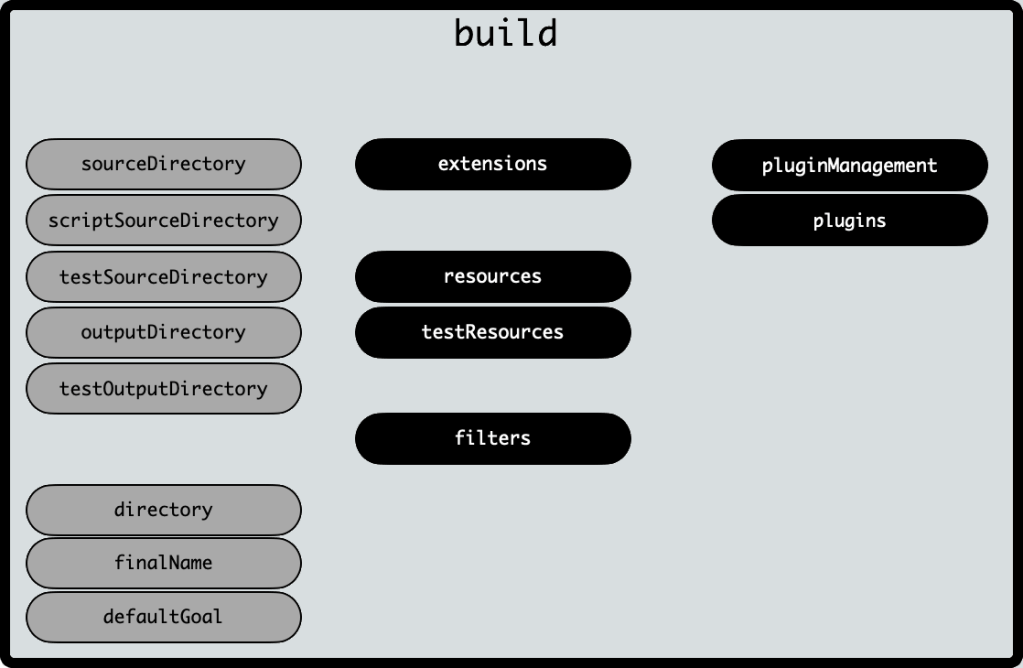
Build element contents. The dark background elements have complex structures while the light background is for simple elements.

Most of the instructions to chain build configuration together are all defined under a build element. A few elements of note are listed below.

Configuring directories for source, script and test files

While it is heavily recommended to not change the convention of sources, scripts and test file locations, there is, at times, a need to customize or alter such. It may also be rarely required to alter the output location of a build. In such cases it is possible to point to the directories by setting their relative paths (to the pom.xml) via the following:

  • sourceDirectory
  • scriptSourceDirectory
  • testSourceDirectory
  • outputDirectory
  • testOutputDirectory

Link: https://maven.apache.org/ref/3.6.3/maven-model/maven.html#class_build

Maven extensions

The ability to extend maven functionality to perform other tasks. These extensions are declared with GAV coordinates. Many of such extensions are Wagon Providers, for providing artifact customization (file providers, ftp provider, SSH providers, HTTP providers etc.). Newer extensions are for format benefits of a polyglot maven (Ruby, XML, YAML, JSON etc.).

Link: https://maven.apache.org/ref/3.6.3/maven-model/maven.html#class_extension

Customizing resources

Resources are additional content useful in running the project or its tests. Content could include properties, configurations, images and other assets that do not necessarily need compilation. Some resources may also need values added (or replaced) during the maven execution of the project POM. The resources (and the testResources compliment) element allows defining a set resource (or testResource) elements which can customize the location in the final artifact, replacement patterns the location of resources (overriding convention or src/main/resources or src/test/resources. It is possible to filter includes and excludes sections based on filenames and wildcard patterns.

Link: https://maven.apache.org/ref/3.6.3/maven-model/maven.html#class_resource
Link: https://maven.apache.org/ref/3.6.3/maven-model/maven.html#class_testResource

Configuring plugins and pluginManagement

Plugins are maven’s means of executing goals. Plugin goals can bind to maven lifecycle phases as was discussed in Part 4. Plugins implement behavior that execute in the lifecycle phase/goal sequence. A plugins element can contain several plugin definitions which can further be configured, if needed.

A pluginManagement section is to a plugin what a dependencyManangement is to a dependency. A lookup table for configured plugins to be re-used across many modules in the project. Plugins declared in a pluginManagement are not loaded but are used to specify a reusable version and configuration setup that can be re-used within the actual build plugins if listed. Similar to dependencyManagement, a plugin declared in an accessible pluginManagement section can skip re-configuration and skip the version in the build -> plugins section.

Link: https://maven.apache.org/ref/3.6.3/maven-model/maven.html#class_plugin
Link: https://maven.apache.org/ref/3.6.3/maven-model/maven.html#class_pluginManagement

Customizing the entire POM based on profiles

Profiles/profile content. The dark background elements have complex structures while the light background is for simple elements.

Profiles will require an entire blog post by themselves. Maven offers build profiles which can be activated either by default, or when certain conditions are met or by flagging them in a command line to maven execution. Build profiles contain many of the sections already present under the project element but are only executed when the profile is activated.

A profiles element contains a set of profile elements which can be activated:

  • by default (activeByDefault)
  • matched by JDK definition in a toolchains.xml
  • based on operating system (name, family, architecture and/or version)
  • based on a property existence or a specific value
  • based on a file either existing or missing

A profile can contain several other elements including: build (resources, testResources, pluginManagement, plugins), modules, distributionManagement, properties, dependencyManagement, dependencies, repositories, pluginRepositories, reporting etc., all covered earlier in the blog.

Link: https://maven.apache.org/ref/3.6.3/maven-model/maven.html#class_profile

Additional links

Link: https://maven.apache.org/pom.html
Link: https://maven.apache.org/guides/introduction/introduction-to-the-pom.html

That’s a wrap on this blog. Next up is Configuring Apache Maven. Have fun !

Part 5
Maven Dependencies
IndexPart 7
Configuring Apache Maven

Understanding Apache Maven – Part 5 – Dependencies in Maven

java, maven

Published: 2020-06 (June 2020)
Verified with: Apache Maven 3.6.3

Link to an index, to find other blogs in this series.

In Part 5 of the series , a walkthrough of maven dependencies is covered.

What are dependencies

Dependencies are the basic building blocks on a maven project. Imagine writing some code that requires logging some outputs or using some string utilities or parsing JSON text. The logic can be coded into the project, or a library can be used. Most of the times, it makes sense to harness an existing library to minimize the amount of code needed. This also encourages reuse.

The libraries, required to compile, run, test the project in a maven ecosystem, are referred to as dependencies.

The project in question could potentially be a library used as a dependency in some other consumer POM.

How are dependencies located?

In Part 3 of the series, the dependency coordinates and distinguishers were covered. As a recap, a dependency location can be reached via its groupId, artifactId and version (G-A-V or GAV) coordinates and furthermore the type and classifier can be specified to pinpoint the exact dependency needed in the project. Together these can be referred to as location coordinates.

A future blog is dedicated to a walkthrough of the POM file, but this blog is focused on a deep dive on dependencies.

An sample of a dependency block in an XML format POM file is listed below.

<project>
  ...
  <dependencies>
    <dependency>
      <groupId>a.group-id</groupId>
      <artifactId>an-artifact</artifactId>
      <version>1.0</version>
      <exclusions>
        <exclusion>
          <groupId>transitive.group-id</groupId>
          <artifactId>excluded-artifact</artifactId>
        </exclusion>
      </exclusions>
      <optional>true</optional>
    </dependency>
    <dependency>
      <groupId>another.group.id</groupId>
      <artifactId>another-artifact</artifactId>
      <version>1.0.0-SNAPSHOT</version>
      <type>zip</type>
      <scope>runtime</scope>
    </dependency>
  </dependencies>
</project>

This excerpt is not exhaustive in how a dependency excerpt can look like. Time to dig in.

A dependency in a POM

Dependencies for a project are declared in a dependencies element. This element represents a set of unique dependency elements. As exemplified above and described in earlier blogs, a dependency can contain the G-A-V coordinates and additional optional distinguishers as needed. In addition to the location coordinates, a dependency can contain exclusions, a scope and an optional tag.

Transitive dependencies

As mentioned earlier, a POM has dependencies. The project itself can be a dependency for some other consumer project. The current project’s dependencies are then considered transitive dependencies for the other project. When maven pulls in a dependency from the location coordinates, it also attempts to pull in the transitive dependencies for it. Put in different words, if project A depends on dependency (another project) B and this B depends on dependencies C and D, then maven attempts to resolve and pull in B, C and D when creating an effective POM for project A. More on this in a bit.

The depth of transitive dependencies is not limited. Traversal continues until the level where there are no further transitives for each dependency listed. This entire structure of a dependency and its complete transitive graph is known as its dependency tree.

Exclusions

In some cases, it may not be necessary to pull one or more transitive dependencies (and their entire further depth). A means to instruct maven to ignore certain “branches” of the tree is via an exclusion. As the excerpt suggests, exclusions are a set of rejection criteria. An exclusion requires a groupId and artifactId (more on this in a bit). It is possible to use a wildcard (*) in the exclusion elements (functional since Apache Maven 3.2.1).

A dependency element can have one or more exclusion elements nested within an exclusions element.

Scope

A dependency may be required to compile a project or to run a project or to only run the project’s tests. A scope instructs maven on how the said dependency is used in the project lifecycle. There are a few scopes enumerated for usage in dependencies. A tabulated summary:

scopenotes
compilethe default scope. These dependencies will be available on the classpath of the project. Also, any project that identifies this project as a dependency will find compile scope dependencies propagated in the dependency tree.
provideda scope that determines that the dependency will be made available for use external to the project’s build artifacts. For instance a container or server will furnish the dependency at runtime and is available on the classpath during execution or tests. These dependency is not propagated as transitive.
runtimea scope that determines that a dependency is only required at runtime and not at compile time. Typical usecases are when an API and its implementation are produced as separate dependencies. The compilation may only need the API dependency while the execution at runtime will require an actual implementation as well. The dependency is propagated as a runtime transitive dependency when the project artifact itself becomes another project’s dependency.
testa scope that determines that a dependency is only required for compiling and running tests and not during a normal compilation nor execution of the project. the dependency is not propagated as a transitive.
systema scope that stops maven from resolving a dependency from a repository. The scope requires an additional systemPath element which specifies the location of the dependency. While the dependency is available on the classpath. The dependency is not propagated as a transitive.
importa special scope used exclusively in a dependencyManagement section that will be covered later in this blog. As a preview, the dependencies are an instruction for replacement and are not propagated as transitive.
Tabulated scope values with notes on each

Optional

The project may need some dependencies that need not be passed on to any other projects that use the current project as a dependency. Such dependencies can be of any scope. An element in the dependency structure is optional that marks the said dependency as only needed for the current project’s maven executions.

An anecdotal example of depending on a metrics library: The current project may need a metrics library for execution and testing, however when the project is used as a dependency, there may be no need for the consumer project to rely on this metrics library. Such a dependency can be tagged as optional.

A graphical representation

A graphical representation of a dependency tree showing different depths of transitive dependencies as well as possible exclusions and non-inclusion via an optional attribute on a sample transitive.
Basic dependency graph example

How to view the dependency tree

It is possible to view the dependency tree of the project POM via a command line as well as via most modern IDEs. Command line options for viewing the dependency tree:

View full dependency tree of the POM

mvn dependency:tree

View a verbose dependency tree of the POM

mvn dependency:tree -Dverbose=true
OR
mvn dependency:tree -Dverbose

NOTE: The verbose flag is true if the option is mentioned, so an “=true” can be removed.
PERSONAL OPINION: Prefer the usage of -D<option>=<value> over -D<option>.
CAUTION: This produces a lot of output !

View a verbose dependency tree of the POM for a specific dependency

mvn dependency:tree -Dverbose=true -Dincludes=<groupId>
OR
mvn dependency:tree -Dverbose=true -Dincludes=<groupId>:<artifactId>

How maven resolves transitive dependency versions

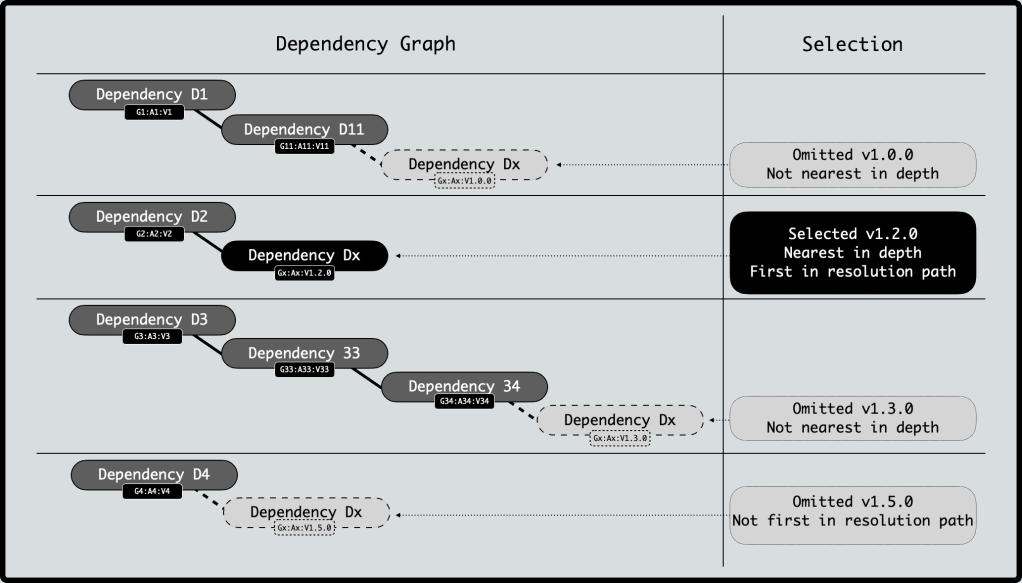
A project POM can include several dependencies, which may further have varying depths of transitive dependencies. It is very possible that a few dependencies share transitive dependencies but depend on different versions. Maven is thus tasked with electing the right transitive dependency to use for its effective POM, to avoid duplication. Since maven cannot sort version strings (versions are arbitrary strings and may not follow a strict semantic sequence), maven takes the approach of nearest transitive dependency in the tree depth. This is very similar to how Java picks up the first jar in the class path when looking for a fully qualified class name.

to illustrate with an example, let us look at the transitive dependency Dx in the example below.

POM P1 has a few dependencies listed below (with dummy Group, Artifact and Version numbers) with transitive dependencies shown as ->.

  • Dependency D1 (G1:A1:V1) -> D11 (G11:A11:V11) ->Dx (Gx:Ax:V1.0.0).
  • Dependency D2 (G2:A2:V2) -> Dx (Gx:Ax:V1.2.0).
  • Dependency D3 (G3:A3:V3) -> D33 (G33:A33:V33) -> D34 (G34:A34:V34) -> Dx (Gx:Ax:V1.3.0).
  • Dependency D4 (G4:A4:V4) -> Dx (Gx:Ax:V1.5.0).

Maven creates a dependency tree during its effective POM generation that is illustrated below:

Graphical representation of determining a transitive dependency to be nearest in depth and first in resolution.

the above example shows V1.2.0 of Dx as the transitive dependency of choice since it is nearest in depth and first in resolution in this dependency tree.

Helping maven pick a different version

Add a direct dependency

Adding the desired transitive dependency version as a direct dependency in the project POM will result in such a dependency being the nearest in depth, and thus the dependency version to be selected. In the above example, if the desired version to be used was v1.3.0, then adding a dependency D5 (Gx:Vx:V1.3.0) would ensure its selection.

Use dependencyManagement

A project may contain several modules as was highlighted in Part 3 of this series. Often times, both for compatibility enforcement and POM hygiene, it is necessary to ensure the same version of the dependency be used across all child modules. In addition, the ability to override the nearest depth selection by selecting a specific version requires a lookup section in the POM. A dependencyManagement section in a POM is such a lookup.

Adding dependencies in a dependencyManagement does not include them in the dependency graph, rather provides a lookup table for maven to help determine the selected or chosen version of the transitive dependency that is listed.

A dependencyManagement section contains a dependencies element. Each dependency listed under is a lookup reference used either in the current POM or in any POM that inherits (either any POM that identifies the current POM as a parent or any POM that imports the project POM as a bill-of-materials).

Inheriting a dependencyManagement implies a few items:

  1. Once a dependency is listed in the section, any inheriting POMs can skip the version attribute when declaring the dependency. A version is no longer required, since the dependencyManagement provides one. Deliberately adding a version will override what the managed section defines, so standard maven version nearest depth kicks in.
  2. A project POM can acquire the a managed dependency version by either declaring parentage or by importing a bill-of-materials.
  3. Maven uses the dependencyManagement during the effective POM generation phase.
  4. Declaring a dependency in the dependencyManagement structure is just for a lookup reference.
  5. If a dependency defined in the dependencyManagement is never encountered in the actual dependency tree for the current project, it is ignored when generating the effective POM.
  6. A bill-of-materials POM is typically a large dependencyManagement block of compatible versions of several potential transitive dependencies that may (or may not) be required in the current project.
  7. A bill-of-materials (BOM) POM is a special POM of packaging type of pom. The BOM POM is imported into the project POM as a dependency with a scope of import.

An amazing resource to find out more about best practices for maven can be found at: https://jlbp.dev/.

That is a wrap on this blog. There is a lot more to cover on this topic including version ranges and enforcing version rules. These topics will be covered as separate blogs in the series.

Have fun!

Part 4
Maven Lifecycle
IndexPart 6
Maven POM Reference